 i10Accounts
Retail point of sale and accounting
From the till to the books.
Ring up sales, track what’s on the shelf, and keep your accounts in step. Run your shop from a Windows desktop and pair Android phones for sales and restocking.
Point of sale
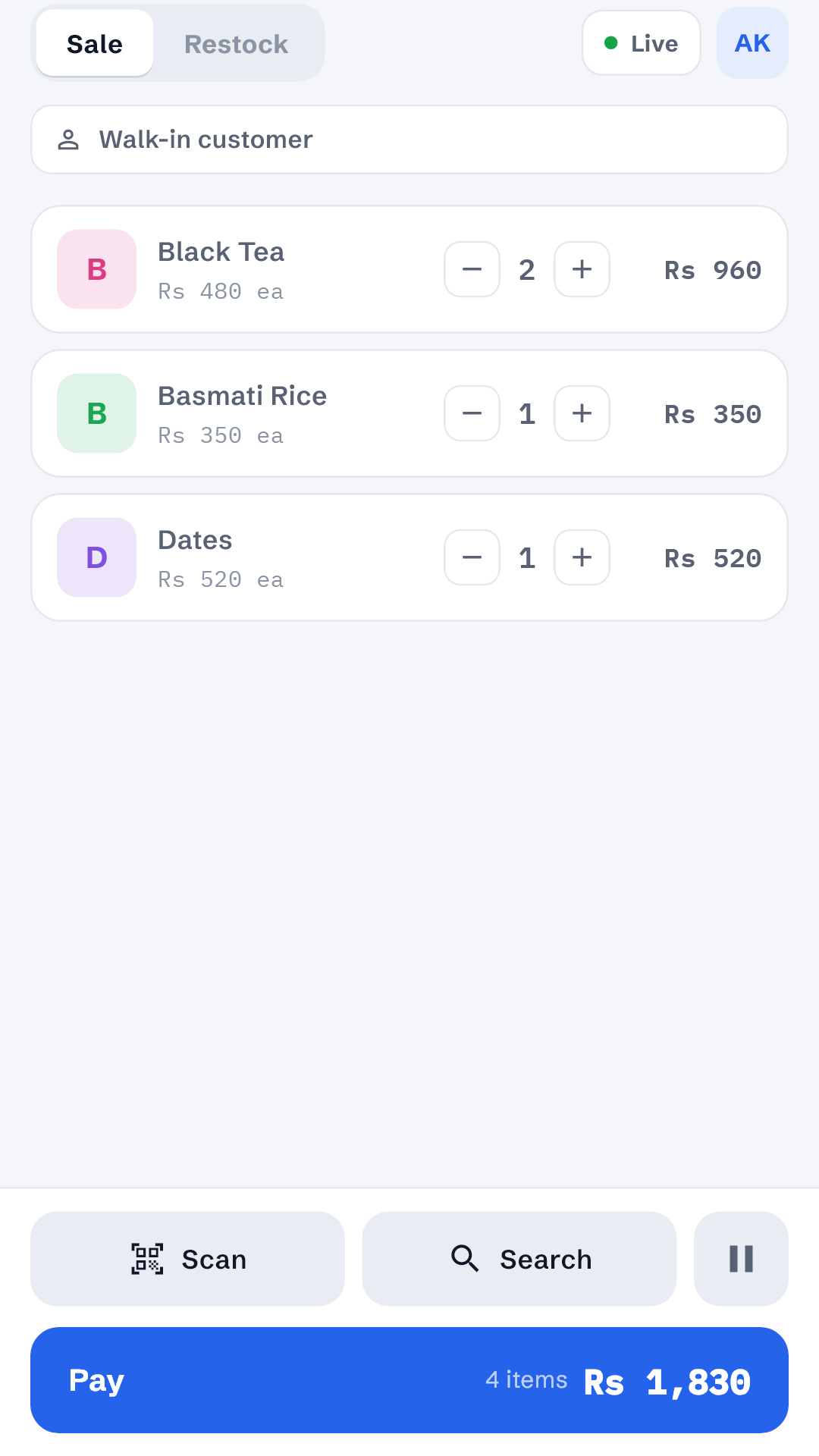
Walk-in sale
| Item | Amount |
|---|---|
| Black Tea × 2 | Rs 960 |
| Basmati Rice × 1 | Rs 350 |
| Dates × 1 | Rs 520 |
| Total | Rs 1,830 |
The sale updates stock and accounts.
A shop day in i10Accounts
Make the sale
Scan items, hold a bill while a customer shops, and print a receipt when they pay.
Keep stock up to date
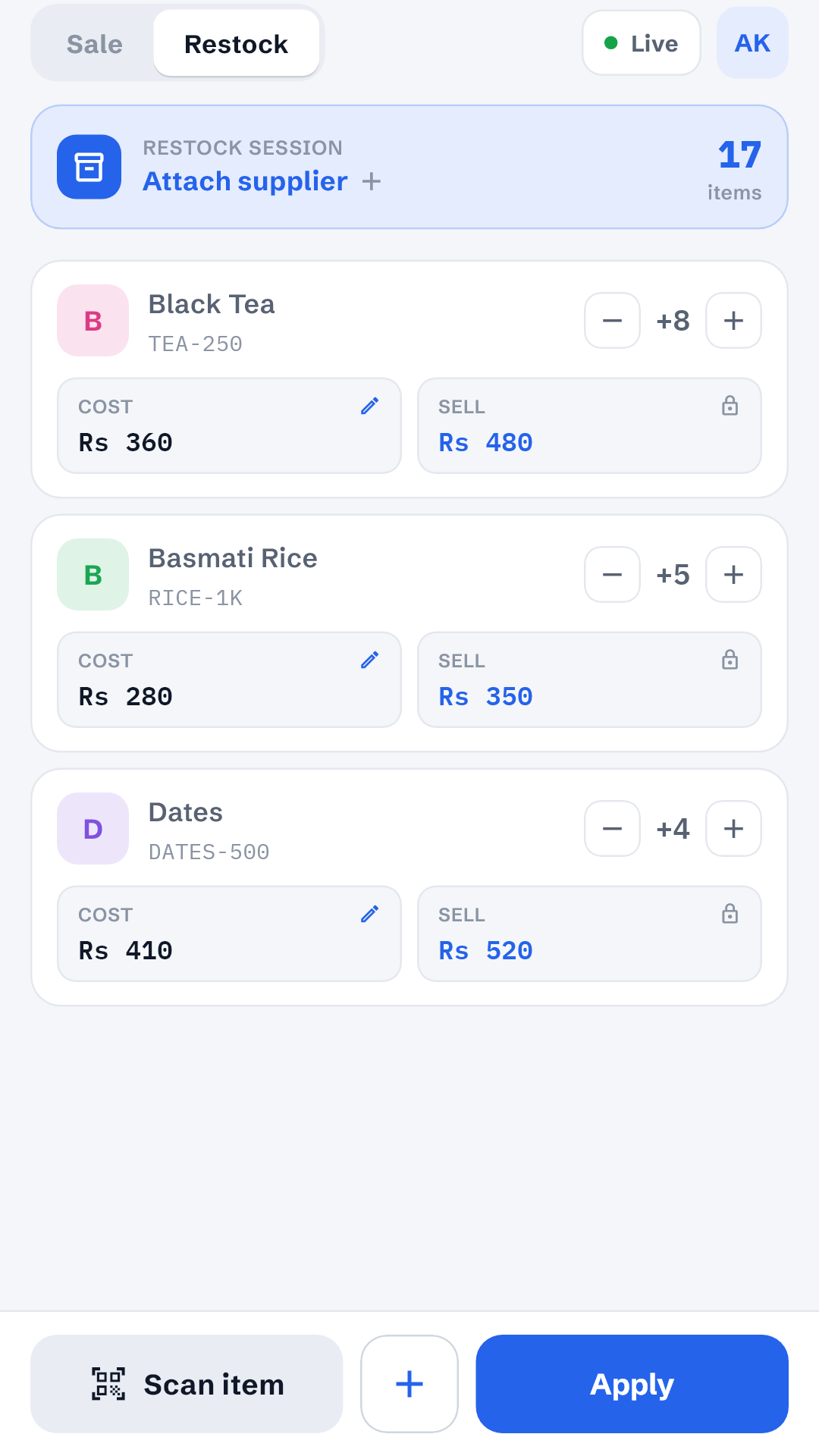
Receive purchases, make stock adjustments, and see quantities change as sales and returns post.
Close the books
Review the day’s till report and follow sales, purchases, and returns through to the general ledger.
i10Accounts on Android
Scan at the counter or in the aisle.
Pair a phone with your shop’s desktop over the local network. Use its camera to scan products for a sale or record stock as it arrives.
- Sign in with your staff PIN after pairing.
- Switch between Sale and Restock on the phone.
- Queue eligible sales while the phone is disconnected.
Set up your shop
Start on the Windows desktop. Add phones once the shop is ready.
Create your shop
Open i10Accounts and complete the setup wizard. Enter your shop details, choose your country and currency, and create the first owner account.
Prepare the counter
Add your products, set up the receipt printer, and review staff permissions. In Settings, open Data & Backup and choose where to keep a backup.
Pair an Android phone
Connect the phone to the shop’s Wi-Fi and open pairing on the desktop. Scan the pairing QR code in the mobile app, then choose your staff account and sign in with your PIN.